

A Pareto chart is a popular chart for statistical quality control.
It is often used to display the relative frequencies of issues that affect the
quality of a manufacturing process. A bar chart displays the frequency of each issue that causes a defect.
The bars are ordered by height:
the most common issues (tall bars) are displayed to the left of the chart, whereas
less common issues (short bars) are displayed to the right.
In many cases, the prevalence of issues follows a Pareto principle.
The classical Pareto principle is that 80% of the problems are caused by 20% of the issues.
Therefore, the left side of a Pareto chart reveals which issue (or issues) should be addressed to have the most impact on the quality of
the process.

There are two common variations of the Pareto plot.
The most familiar is a bar chart of frequencies that is overlaid with a cumulative frequency curve.
This graph is shown to the right.
The other is a “cascade chart” (sometimes called a waterfall chart)
that displays the cumulative frequencies as a staircase of bars.
These charts are produced automatically by the PARETO procedure in SAS/QC software.
The PARETO procedure has many options for displaying Pareto charts.
However, not every SAS user has a license for SAS/QC. This article shows how to create basic
Pareto charts by using Base SAS procedures and the SGPLOT procedure.
The data
To illustrate a Pareto chart, let’s use a modification of data from the documentation of the PARETO procedure.
A random sample of 40 defective parts are examined, and the cause of each defect is recorded, as follows:
/* Modification of PROC PARETO example */ data Failure; INFILE DATALINES delimiter=','; length Cause $ 16; label Cause = 'Cause of Failure'; input Cause @@; datalines; Corrosion, Oxide Defect, Contamination, Oxide Defect Oxide Defect, Oxide Defect, Contamination, Metallization Oxide Defect, Contamination, Contamination, Oxide Defect Contamination, Contamination, Contamination, Corrosion Silicon Defect, Contamination, Contamination, Contamination Contamination, Contamination, Doping, Oxide Defect Oxide Defect, Metallization, Contamination, Corrosion Silicon Defect, Contamination, Corrosion, Corrosion Metallization, Oxide Defect, Contamination, Contamination Oxide Defect, Doping, Doping, Contamination ; |
If you have a license for SAS/QC software, you can create a basic Pareto chart with an overlaid cumulative curve by using the PARETO procedure. So that you can easily reuse the SAS code for your own data, I have defined macro variables for the name of the data set and the name of the categorical variable.
%let DSName = Failure; %let VarName = Cause; proc pareto data=&DSName; vbar &VarName; run; |
The graph is shown at the top of this article. It shows that “Contamination” is responsible for 42.5% of the failures.
The first three categories account for 80% of the defects, so those are the issues that quality engineers should strive to improve.
Whereas the classic “Pareto rule” is that 20% of the issues result in 80% of the defects, the cumulative curve
shows that, for this process, 50% of the issues (the first three categories) are responsible for about 80% of the defects.
A Pareto chart in Base SAS
If you do not have a license for SAS/QC software, you can still create a basic Pareto chart by using PROC FREQ to
compute the frequencies and PROC SGPLOT to display a sorted bar chart and a cumulative curve.
There are a few useful options to know about:
- The PROC FREQ statement supports the ORDER=FREQ option, which sorts the frequencies in descending order.
- The TABLE statement supports the OUT= option, which you can use to
create a data set that contains the data for the Pareto chart. Use the OUTCUM option to output the cumulative statistics. - The SGPLOT procedure supports the VBAR and VLINE statements, which enables you to overlay a bar chart and a cumulative curve.
You can use the Y2AXIS option on the VLINE statement to display a separate axis for the cumulative scale.
/* create the Pareto charts by hand in SGPLOT */ proc freq data=&DSName order=Freq noprint; where not missing(&VarName); table &VarName / out=FreqOut outcum; run; title "Standard Pareto Chart"; proc sgplot data=FreqOut noautolegend; vbar &VarName / response=Percent; xaxis type=discrete discreteorder=data; yaxis grid min=0 max=100 offsetmin=0 label="Percent"; /* overlay the cumulative percentage on the Y2 axis */ vline &VarName /response=cum_Pct markers datalabel y2axis; y2axis min=0 max=100 offsetmin=0 label="Cumulative Percent"; format cum_Pct best4.; run; |
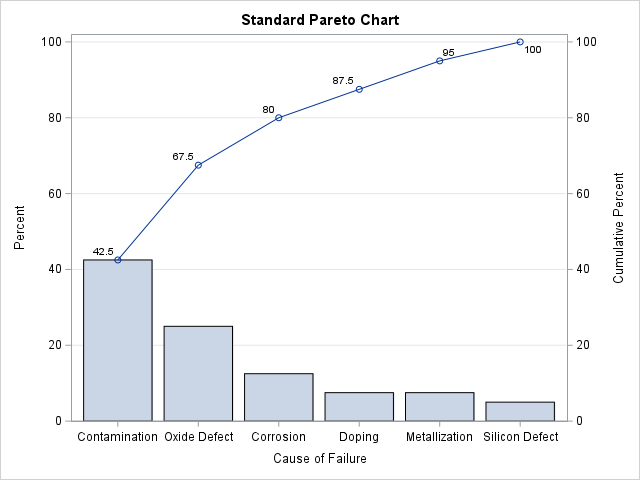
The output is similar to the previous Pareto chart.
I decided to add grid lines and to add markers to the cumulative curve. Otherwise,
the information in this chart is the same as the one produced by PROC PARETO.
Problem with the classical Pareto chart
The classical Pareto chart suffers from three problems (Wilkinson, TAS, 2006):
- Dual scale: Mathematically, the cumulative curve is the integral (or sum) of the bar heights.
It can be confusing to plot both quantities in the same graph. The “dual scale” problem is even worse if you show the scale of the bars as counts instead of percentages, as is often done. - Range: When there are many categories (or when no category is responsible for most of the defects),
the bars are short, whereas the cumulative curve will always range to 100%.
In that situation, it is difficult to judge the height of the bars, which get squashed down to the bottom of the frame. - Interpolation: It is wrong to use line segments to connect the cumulative frequencies.
It makes it seem like the cumulative probability is a continuous function that increases linearly between categories.
It is not. For each category, it is a single number. The number increases discontinuously. The
categories are discrete so there is nothing “between” them. -
Reference distribution: Implicitly, calling something a “Pareto chart” implies that the data follows a Pareto distribution.
In a Pareto distribution, the frequencies follow a power law. The assumption of an underlying power law
justifies focusing on the issue that has the largest frequency. If the categories are equally likely
to occur, you might as well focus on the issues that are cheapest or quickest to resolve.
A Pareto cascade chart
An alternative to the classical Pareto chart addresses
the first three problems. I call the revised chart a cascade chart or a cumulative Pareto chart.
A bar chart places the base of each bar along a common baseline at zero.
In contrast, a cascade chart aligns the base of each bar with the
top of the preceding bar. This results in a staircase-shaped graph.
The height of each “step” is proportional to the relative frequency of each category.
The tops of the steps show the cumulative distribution of frequencies.
If you have access to the PARETO procedure, you can use the CHARTTYPE=CUMULATIVE option
to create a cascade chart, as follows:
proc pareto data=&DSName; vbar &VarName / charttype=cumulative; run; |

In this graph, the tops of the “steps” show the cumulative distribution of frequencies.
The heights of the steps show each category’s contributions.
You can also create the chart in Base SAS. First, run the PROC FREQ step that was shown earlier.
This creates the FreqOut data set. The following DATA step uses the LAG function to compute the
base level for each step.
You can then use a high-low plot to display the staircase-shaped cascade chart:
/* add upper and lower variables for the HIGHLOW plot */ data CumPareto; set FreqOut; _Lower = lag(cum_Pct); if _N_ = 1 then _Lower = 0; run; title "Cumulative Pareto Chart"; proc sgplot data=CumPareto; highlow x=&VarName low=_Lower high=cum_Pct / type=bar barwidth=1 highlabel=Percent; yaxis offsetmin=0 grid; xaxis type=discrete discreteorder=data; format Percent best4.; run; |

Again, I have added gridlines and labels to the bars, but otherwise the information is the same as the cumulative chart that is created by PROC PARETO.
This chart has only a single axis, which shows the cumulative probability. Short bars are no longer squashed at the bottom of the chart. By adding labels, you can see the size of the relative frequencies and the cumulative distribution on a common scale.
There is a third type of Pareto chart that addresses the problem of not being able to see a reference distribution. I will discuss that variation in a separate article.
Summary
In SAS, the PARETO procedure in SAS/QC software provides options to create many types of Pareto charts.
If you do not have a license for SAS/QC software, this article shows how to use Base SAS to create two simple Pareto charts. You can use a Pareto chart to identify the most frequent categories. In practice,
the most frequent categories are analyzed by quality engineers in hopes that addressing those issues will lead to a major improvement in the quality of a manufacturing process.
To simplify the creation of basic Pareto charts, I have encapsulated the techniques in this article into two SAS macros, which are shown in the Appendix.
Appendix: SAS macros that create basic Pareto charts
/* Macros to create a basic Pareto chart, written by Rick Wicklin. For details, see https://blogs.sas.com/content/iml/2026/06/22/pareto-charts-sas.html */ %macro StdPareto(DSName, VarName); proc freq data=&DSName order=Freq noprint; where not missing(&VarName); table &VarName / out=_FreqOut outcum; run; proc sgplot data=_FreqOut noautolegend; vbar &VarName / response=Percent; xaxis type=discrete discreteorder=data; yaxis grid min=0 max=100 offsetmin=0 label="Percent"; /* overlay the cumulative percentage on the Y2 axis */ vline &VarName /response=cum_Pct markers datalabel y2axis; y2axis min=0 max=100 offsetmin=0 label="Cumulative Percent"; format cum_Pct best4.; run; %mend; %macro CumPareto(DSName, VarName); proc freq data=&DSName order=Freq noprint; where not missing(&VarName); table &VarName / out=_FreqOut outcum; run; /* add upper and lower variables for the HIGHLOW plot */ data _CumPareto; set _FreqOut; _Lower = lag(cum_Pct); if _N_ = 1 then _Lower = 0; run; proc sgplot data=_CumPareto; highlow x=&VarName low=_Lower high=cum_Pct / type=bar barwidth=1 highlabel=Percent; yaxis offsetmin=0 grid; xaxis type=discrete discreteorder=data; format Percent best4.; run; %mend; /* show how to call each macro. The categorical variable can be numeric or character */ title; /* character variable */ %StdPareto(sashelp.cars, Type); %CumPareto(sashelp.cars, Type); /* numeric variable */ %StdPareto(sashelp.cars, Cylinders); %CumPareto(sashelp.cars, Cylinders); |